


For our RCM clients who use the Credit card system within the EMR (CMS/Nexio) you can follow this workflow on running any virtual credit cards (VCC) provided by payors.
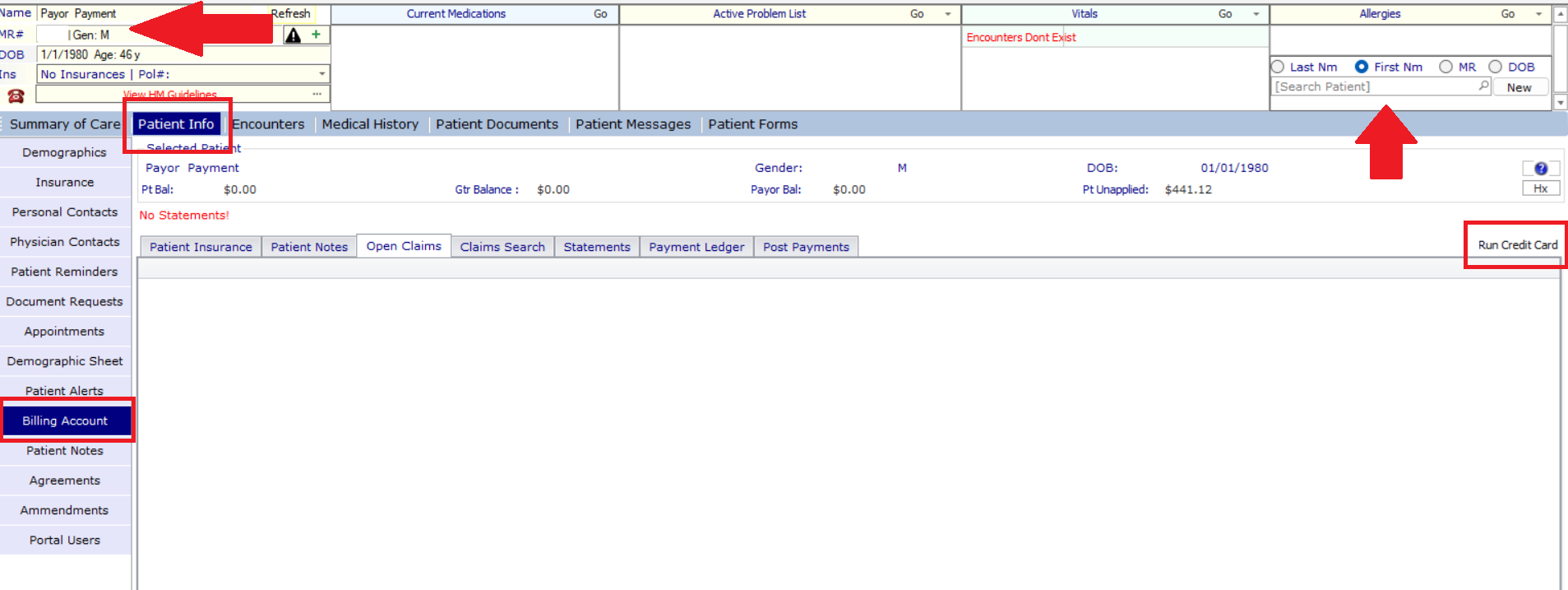
1. You will want to check to see if there is a patient chart within the EMR system named Payor Payment or Payor Pmt. If this is created already then you will use this chart to run the credit card. If you do not have a chart named like this then you should create a new chart like you would for a new patient, naming it as so, so any VCC from payors can be ran under this account.
- You will use this chart rather than the direct patient chart the EOB states the payment(s) is/are for because this is NOT a patient payment but this is a payor payment.
2. Once you are in this chart you will go to Patient info--> Billing account. Then go to run CC button. You will put in the necessary payment details to run this VCC based off what the payor provided. (Credit card #, Exp date, CVV, Zip code, Amount).
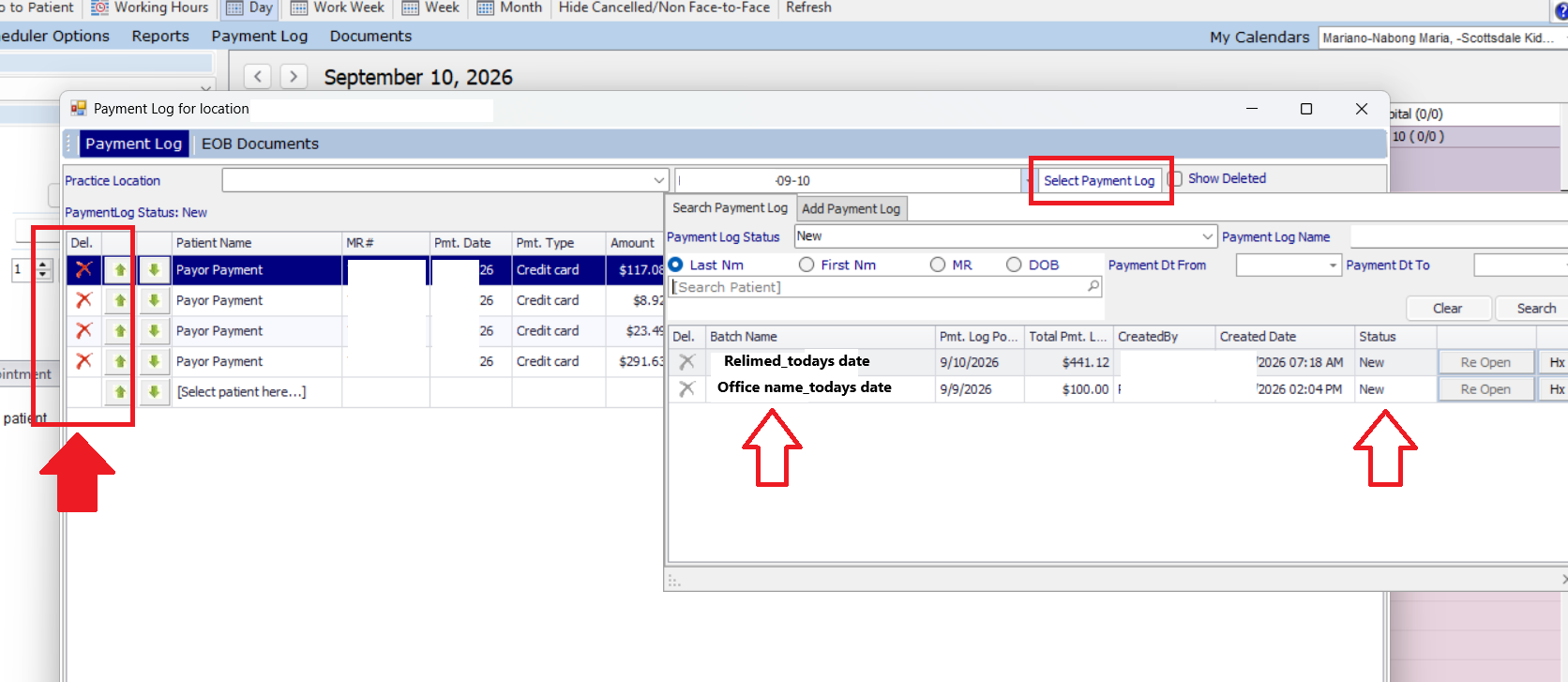
3. After running this payment you then will go to the scheduler--> payment log. Then find this payment either under your office batch or ReLiMed batch for the day and delete this payment from the payment log for that day.
- You will remove this from the payment log since the payment log is specific for Patient payments and you do not want this payor payment to be posted like a patient payment within the system.
4. Then you will scan the EOB document under scheduler--> payment log--> EOB uploads as you normally would upload for billing when mail/EOBS/letters from payors are sent directly to your office.
5. Our team will handle postings based off the EOBS the transactions for any and all claims listed on the document(s). (Payor payments, Adjustments, & Patient responsibilities like copays, deductibles, & co-insurances)
- Uploading EOBs: https://relimed.happyfox.com/kb/article/436-how-to-send-billing-eobs-or-other-insurance-correspondence-rcm-clients-only/

