Adding Custom Encounter Tab

Last updated: May 28, 2026
306
views

ReLiMed EMR enables you to add custom tabs to encounter screens. You can create these new screens within seconds.
Privileges: Administrators and users with List Entry privilege can add these screens.
Following are the steps to add new encounter screens (tabs)
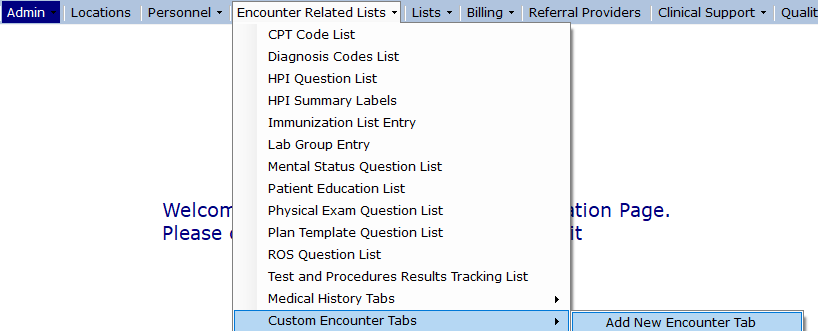
- Go to Admin -> Encounter Related Lists -> Custom Encounter Tabs -> Add New Encounter Tab (as shown in picture below
- Add the name of the screen for example "Chart notes"
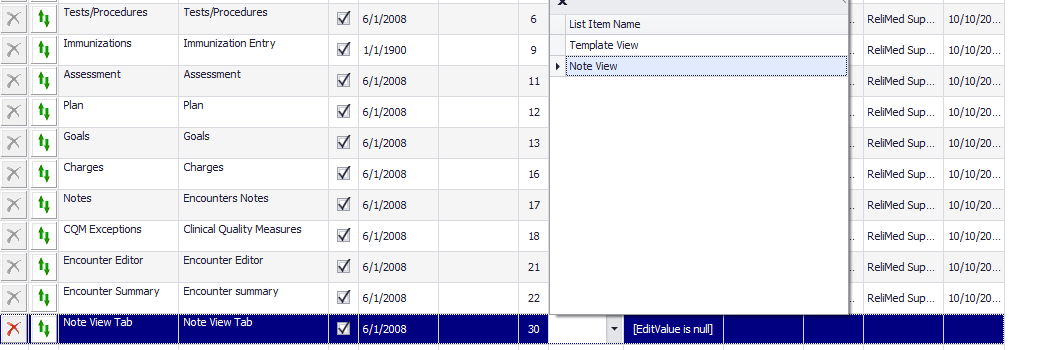
- Select Template type: either a 'Template View' or 'Note View'
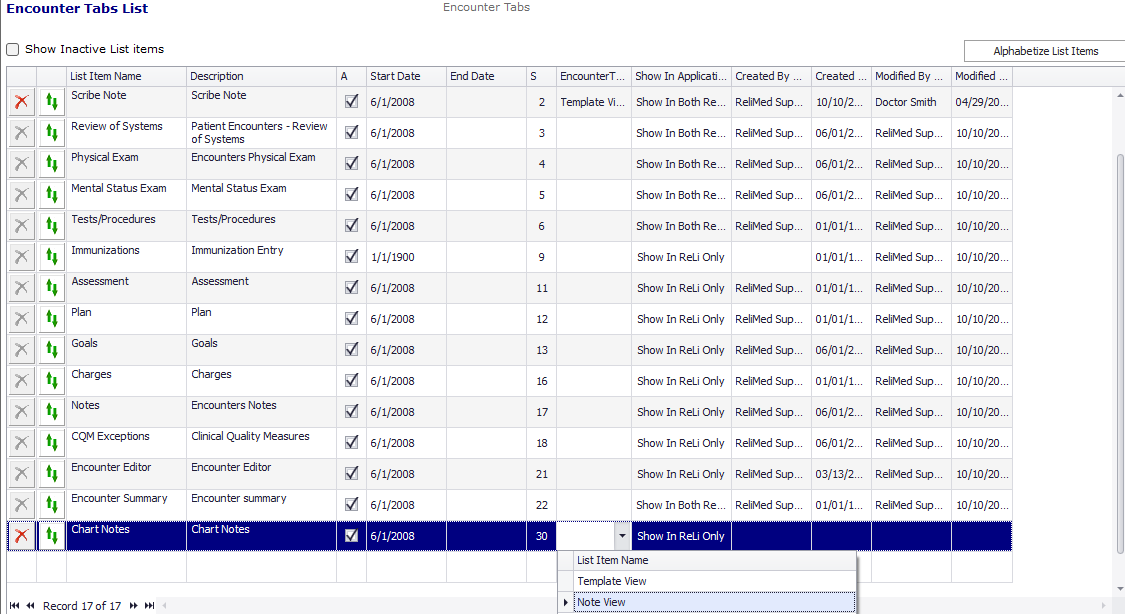
- If you want to create a template view where you can add a template and questions, select Template View, You can then add templates and questions within the templates and start using the new screen under encounters.
- You should log out and back in and go to Admin -> Encounter Related Lists -> Custom Encounter Tabs ->[Newly added screen, ex: "Chart Notes"]
- Here you can go into Templates tab to add a new template if its not already there
- Go back to Question entry tab to add questions to the template
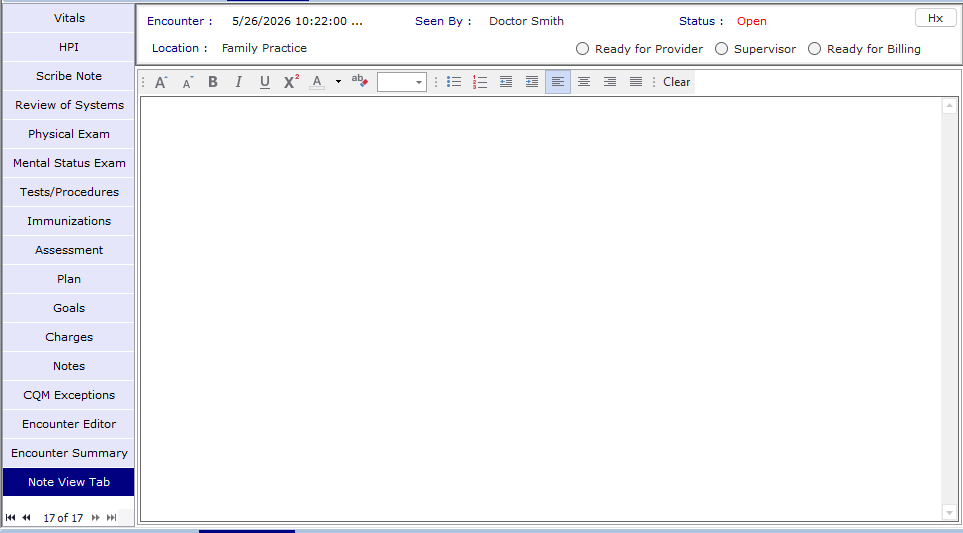
- If you want a note view, the screen will show a free text box
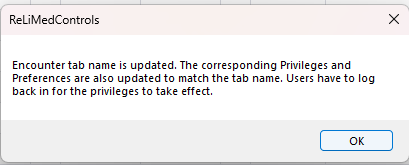
- You will see the following message when the tab is added. This will add the newly added tab to all the following areas:
- Adds a separate privilege just for this screen
- Adds it to Encounter Summary Print Options
- Adds it to Import Encounter options
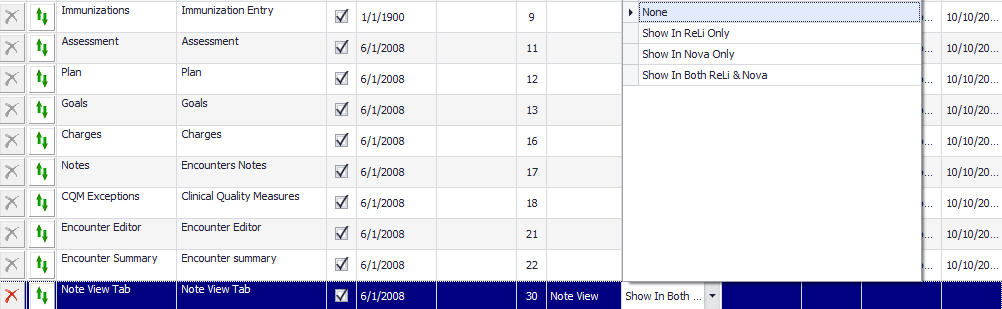
- You can select Show in ReLi or Show in Both if you want it shown in our url based application NovaReLi.
- You can use the Drag/Drop arrows to move the newly add tab to show up anywhere in the encounter workflow
- Log out and back in and you should be good to use the screen under Patient -> Encounters.
For Note View tab, you will see a text box where in you can add any note, picture etc.